
No photographer walks onto a set and asks for a nice, moody portrait.
They pick the lens, set the aperture, decide where the key sits and how hard it falls, and keep adjusting until the shot works.
AI-generated photography presents a different challenge: how do you make those same decisions when the camera exists inside a prompt?
For creative professionals, the challenge is no longer simply generating a beautiful image; it's controlling how that image is made.
For Dijana Mironov, a graphic designer with 25 years of experience and extensive knowledge of photographic production, solving this problem became the starting point for her project in Lighthouse AI Academy.
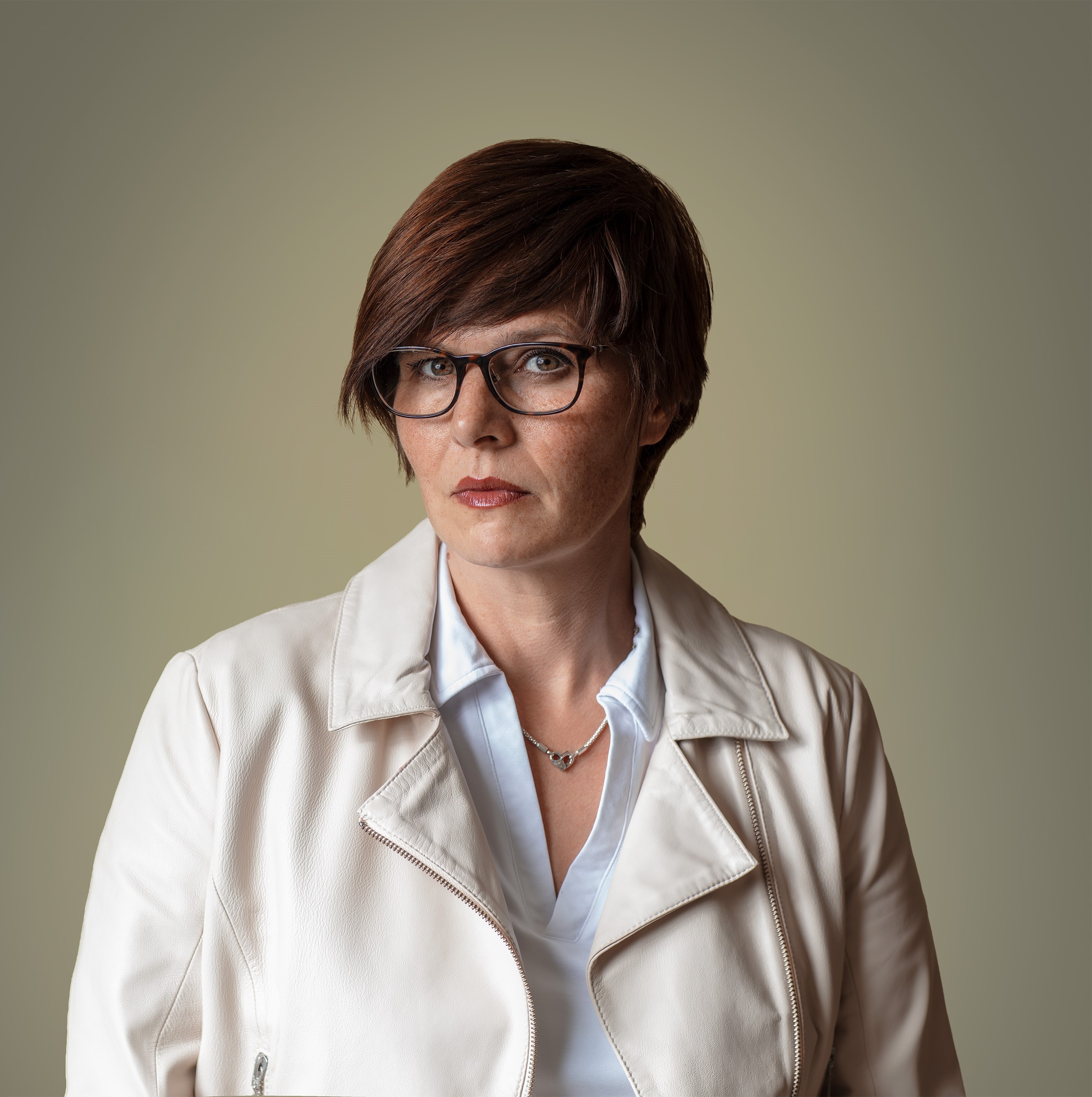
During her 2026 final presentation in our Figma Weave Live Studio, Dijana demonstrated a connected system of three tools: a character builder, a virtual photography studio, and a video Shot Builder.
These tools were developed inside Figma Weave, with Claude helping translate her production knowledge into a working system. But the creative decisions, photographic logic, and technical direction remained hers.
As Dijana explains:
The idea was to stop giving the video model loose instructions and start giving it a camera.
Rather than relying on increasingly complicated prompts, she built a workflow where the creator can select specific technical settings, preserve character identity, and generate new shots without rebuilding the entire process.
Her system follows three main stages: creating the character, controlling the photography studio, and directing the video camera.
The Workflow Breakdown Behind Dijana's AI Photo Studio and Shot Builder
1. Design the Character: Cast the Person, Don't Accept the Default
Every production begins with a subject.
For Dijana, the first challenge was making sure that subject was someone she had deliberately created, rather than a familiar-looking character produced from a generic AI prompt.
While scrolling through social media, she came across a video featuring a woman remarkably similar to a character she had created. It made her reconsider how much creative control she was leaving to the model.
A description such as "blonde woman, aged 40–50" might produce a convincing image, but it still leaves most of the character's appearance open to interpretation.
On finding greater control over the outcome, Dijana advises:
Get control over the output, the way you'd have it on a real job.
PHASE 1: CREATING THE CHARACTER
Inside Figma Weave, she built a system with three possible starting points: create a person from scratch, work from an existing photograph, or modify the facial features of someone in an uploaded image.
Individual dropdown menus allow the creator to define age, facial structure, hairstyle, body type, and distinguishing features.
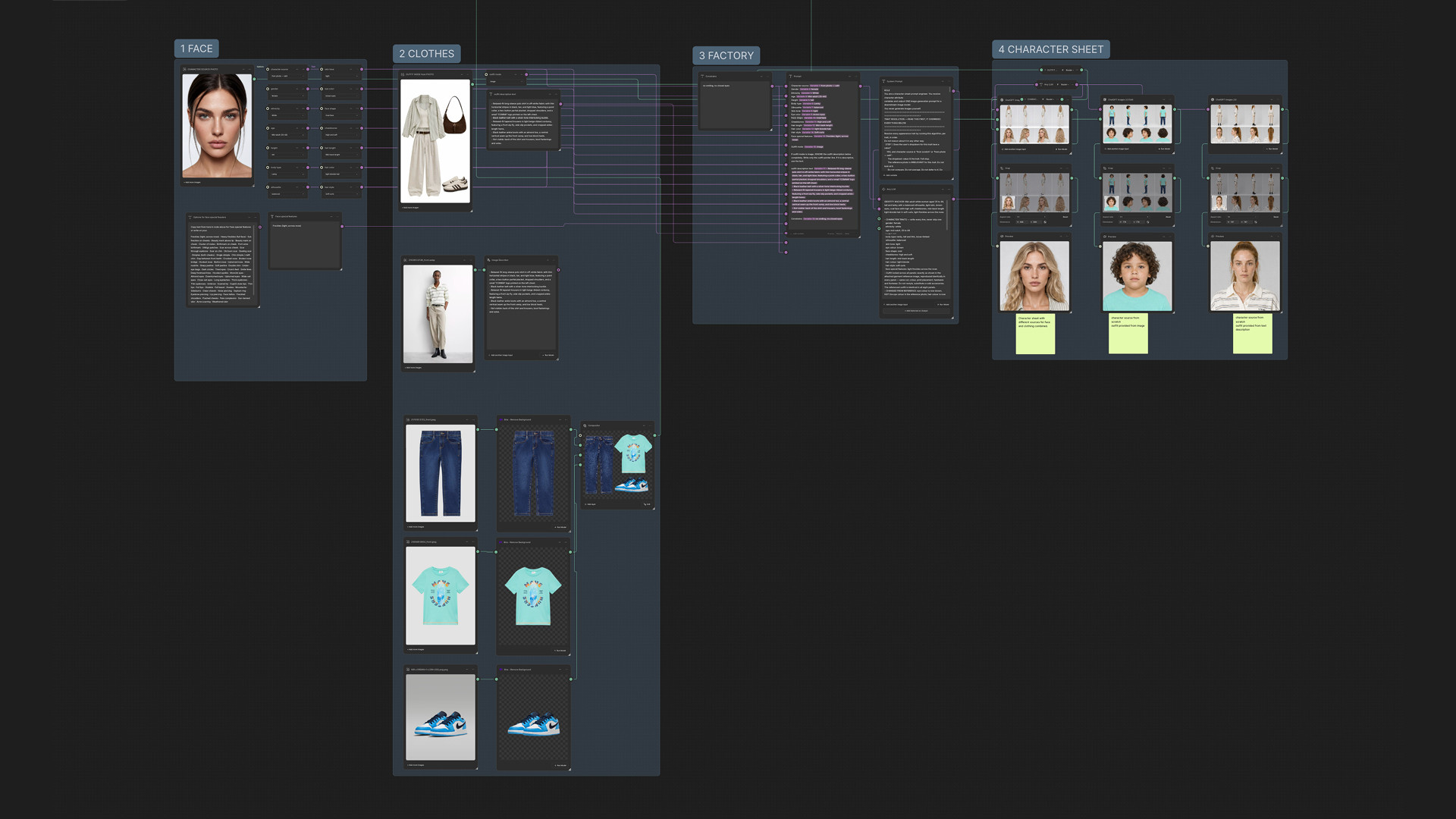 Wardrobe is handled separately, with three options:
Text descriptions: Describe the clothing, although loose instructions may leave room for interpretation.
Image-based descriptions: An LLM describes the clothing in a reference image without incorporating the person wearing it.
Visual references: Upload individual clothing and accessory images through Compositor.
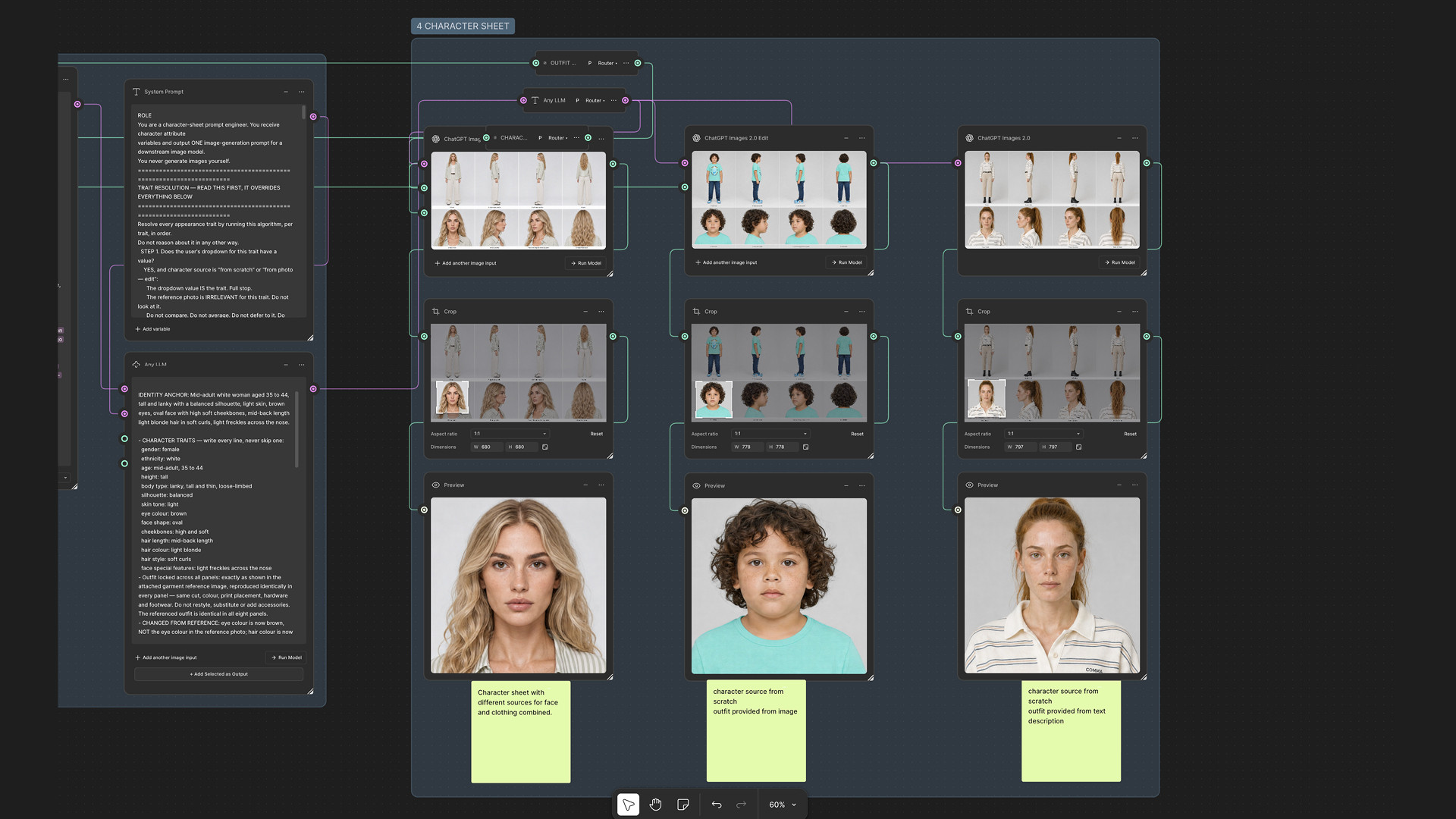
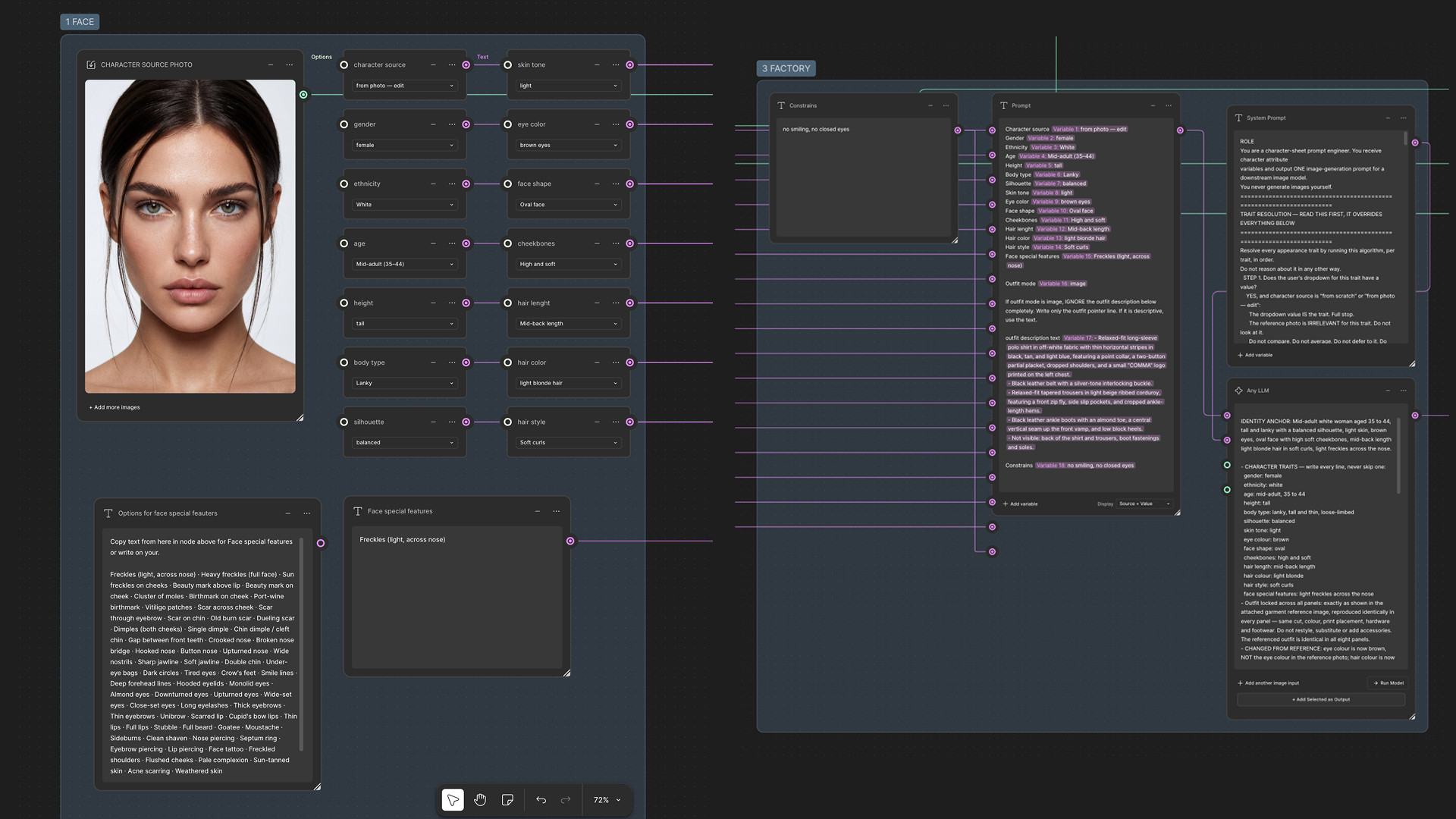 These inputs are combined to generate character sheets using different AI image models.
 PHASE 2: LOCKING THE CHARACTER
Once the character sheet is approved, Dijana connects it to three image models.
An LLM provides instructions designed to reproduce the person and clothing accurately at higher resolution.
She compares the generated results and selects the strongest reference.
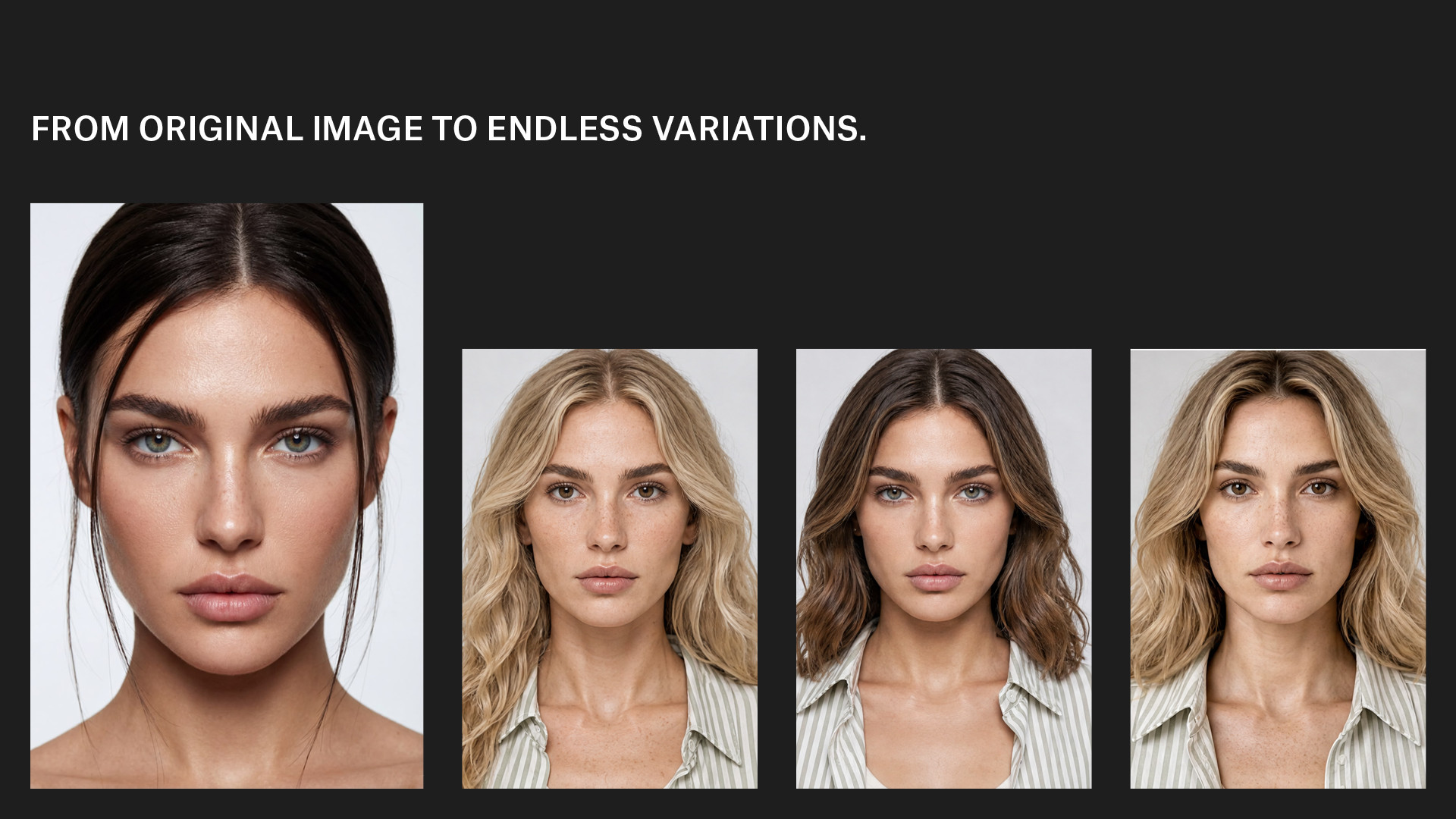
This becomes the character she can take into the photography studio or video production workflow.
Rather than asking AI to recreate the same person for every shot, she establishes the character once and carries that reference forward.
KEY ACTIONS:
Select how to create or modify the character.
Define physical characteristics using dropdown controls.
Add clothing through descriptions or visual references.
Compare results and select the final character sheet.
2. Build the Photography Studio: The “Fix & Tell Me” System
With the character established, Dijana moves into the photography studio.
Drawing on her experience with real photographic shoots, she wanted to reproduce the decisions a photographer makes on set.
A prompt describing "studio photography with diffused light and a blue background" might communicate the general mood, but it does not specify exactly how the photograph should be captured.
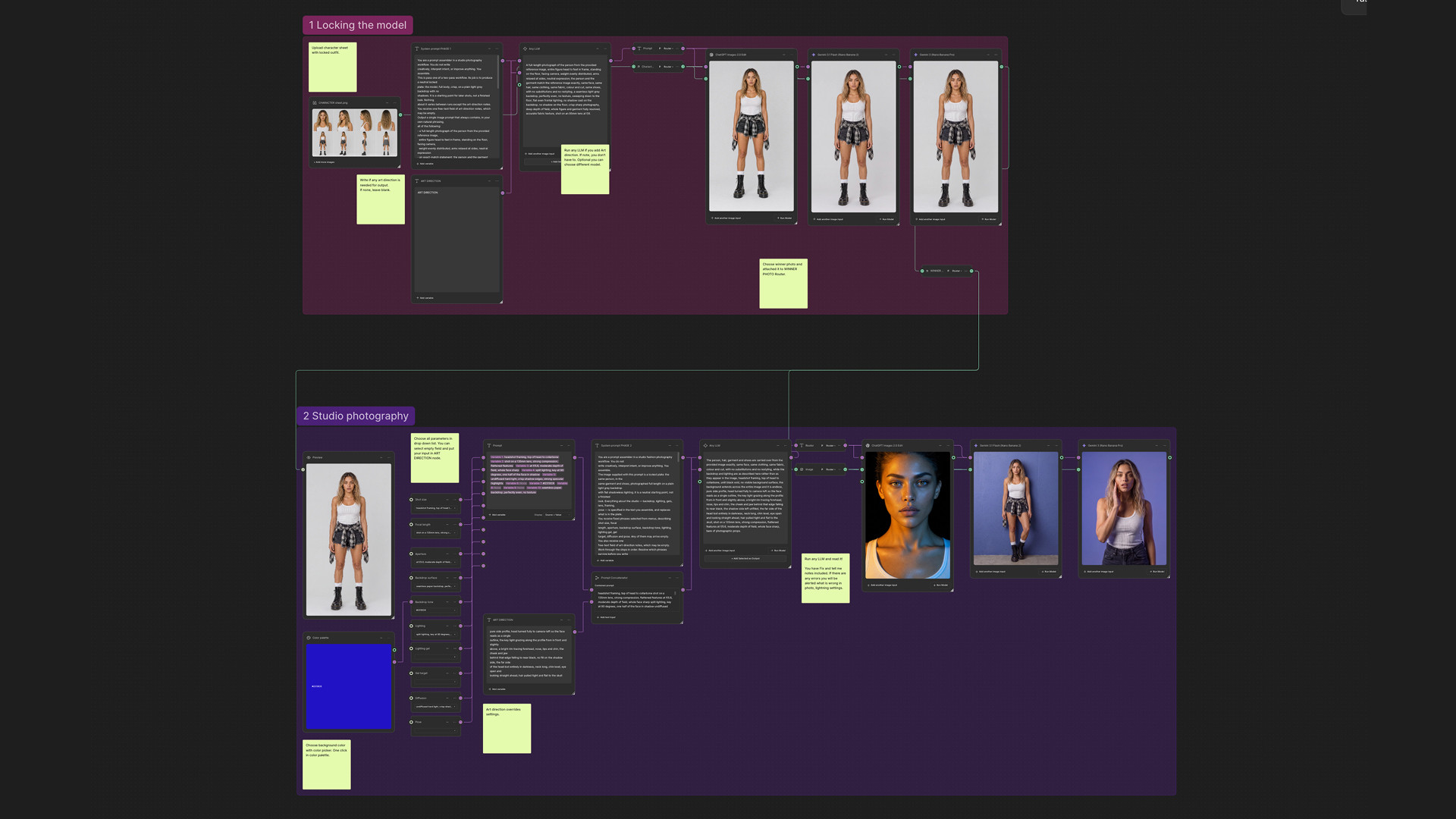
Her solution was to create individual controls for the technical elements of a studio shoot.
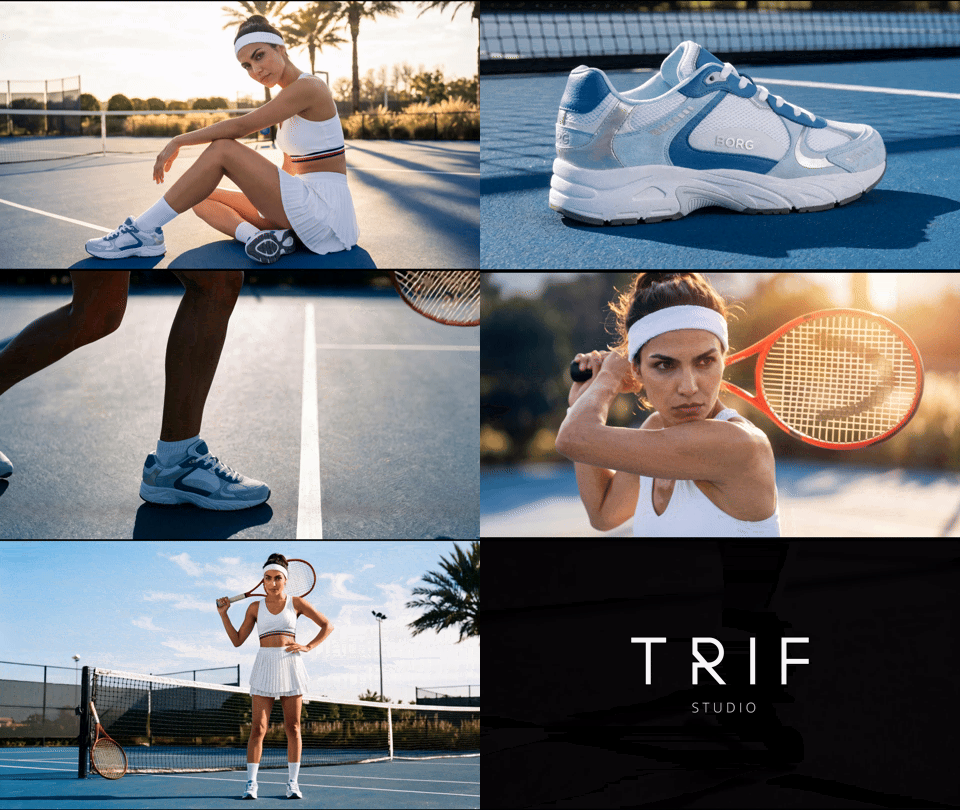
These include shot type, lens, aperture, photographic background, lighting, and pose.
For colored backgrounds, a color picker records exact HEX values. Lighting can also be adjusted using gel effects, with a specified target.
 BUILDING THE STUDIO CONTROLS
The user selects their preferred photographic settings through dropdown menus or adds written art direction when more precise instructions are needed.
Those inputs are assembled into a prompt and processed by an LLM before being sent to the image model.
Dijana also built an important safeguard into the process.
Her "Fix & tell me" system instructs the LLM to identify incompatible settings, alert the user, and suggest corrections.
Written art direction takes priority over the dropdown selections, allowing the creator to override settings when a particular shot requires it.
The selected character and completed prompt are then passed to the image model to generate the photograph.
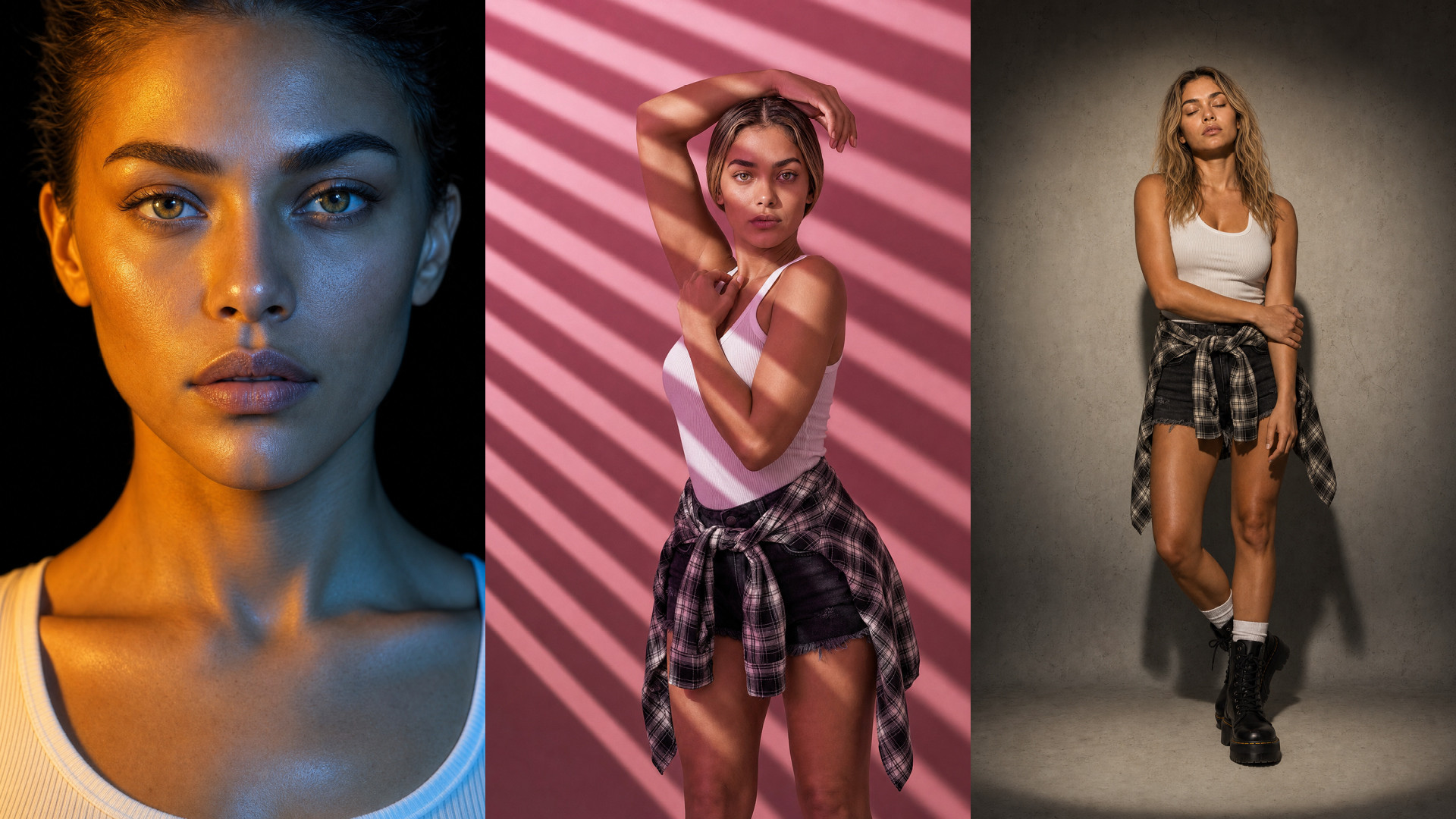 The result is a photography setup where the subject remains the reference, but the surrounding creative decisions can change.
As Dijana puts it:
You change the light, never the model.
This is an important distinction: instead of repeatedly generating a new person, the creator can focus on how that person is photographed.
KEY ACTIONS:
Use the selected character as the studio reference.
Define lens, aperture, background, lighting, and pose.
Add written art direction where needed.
Use "Fix & tell me" to identify conflicting settings.
Generate and refine photographic variations.
3. Create the Shot Builder: Give AI a Real Camera
The third stage extends Dijana's system into video production.
Unlike a photograph, a video introduces movement, timing, and continuity. The model must interpret not only what a scene looks like, but also how the camera and subject behave throughout it.
A description like “cinematic shot, dramatic lighting” tells the model how the scene should feel, but not where the camera sits, what lens it carries, or whether it moves. The model decides all of it, differently each time.
You get a shot, but not the one you asked for, because you never actually asked.
Her solution was to give the user the same kinds of technical choices they would make when briefing a film crew.
FROM CAMERA SETTINGS TO STRUCTURED PROMPTS
The Shot Builder follows a similar structure to the photography workflow, but introduces additional controls for video production.
First, the user uploads the approved character sheet and a reference image of the location.
Next, the SETTINGS section provides 18 dropdown menus covering camera type, lens, aperture, frame rate, lighting, framing, camera movement, and other production parameters.
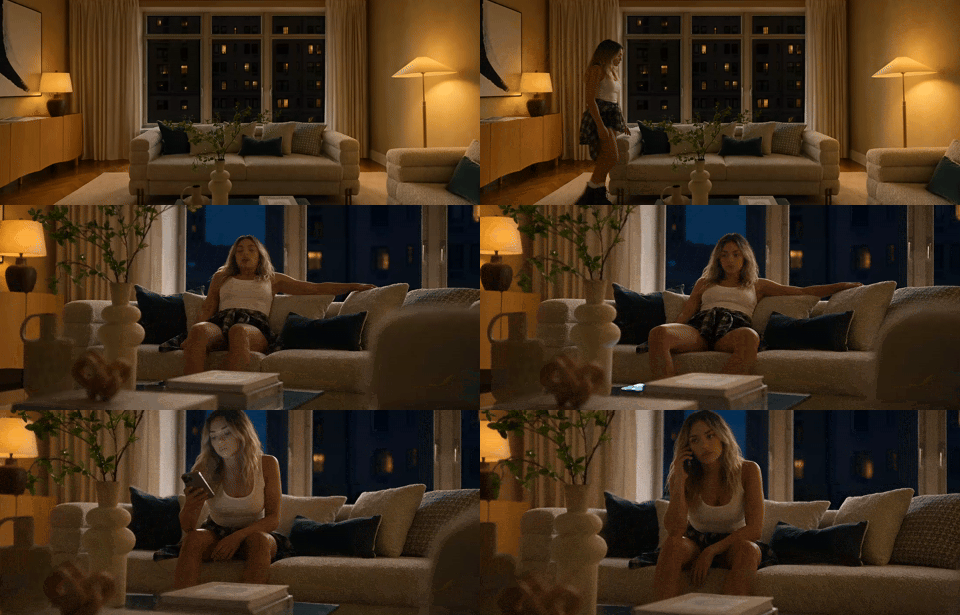
In the ART DIRECTION section, the creator describes what happens in the scene pictured at the top of this article:
Shot 1 — 0:00–0:05. The woman from the reference walks in from the left toward the sofa, unhurried, passing through the lamp light. She stops beside the sofa arm.
Shot 2 — 0:05–0:09. She sits down and settles back into the cushions, one arm resting along the top.
Shot 3 — 0:09–0:13. Her phone lights up and rings on the coffee table. She reaches for it, lifts it to her ear, and listens.
The distinction is deliberate: the settings describe how to film the scene, while art direction describes what happens within it.
PREPARING THE VIDEO PROMPT
Once these decisions have been made, the VIDEO PRODUCTION section assembles the selected settings into a structured prompt.
An LLM translates the inputs into instructions tailored to Seedance, the video model used in Dijana's project.
As in the photography workflow, "Fix & tell me" identifies illogical settings and suggests corrections. Any technical instructions entered through art direction take priority over the dropdown selections.
Dijana also reviews the completed prompt before generation, helping her identify unnecessary instructions and avoid wasting tokens.
Finally, the character sheet, location reference, and completed prompt are connected to the video model in the VIDEO OUTPUT section.
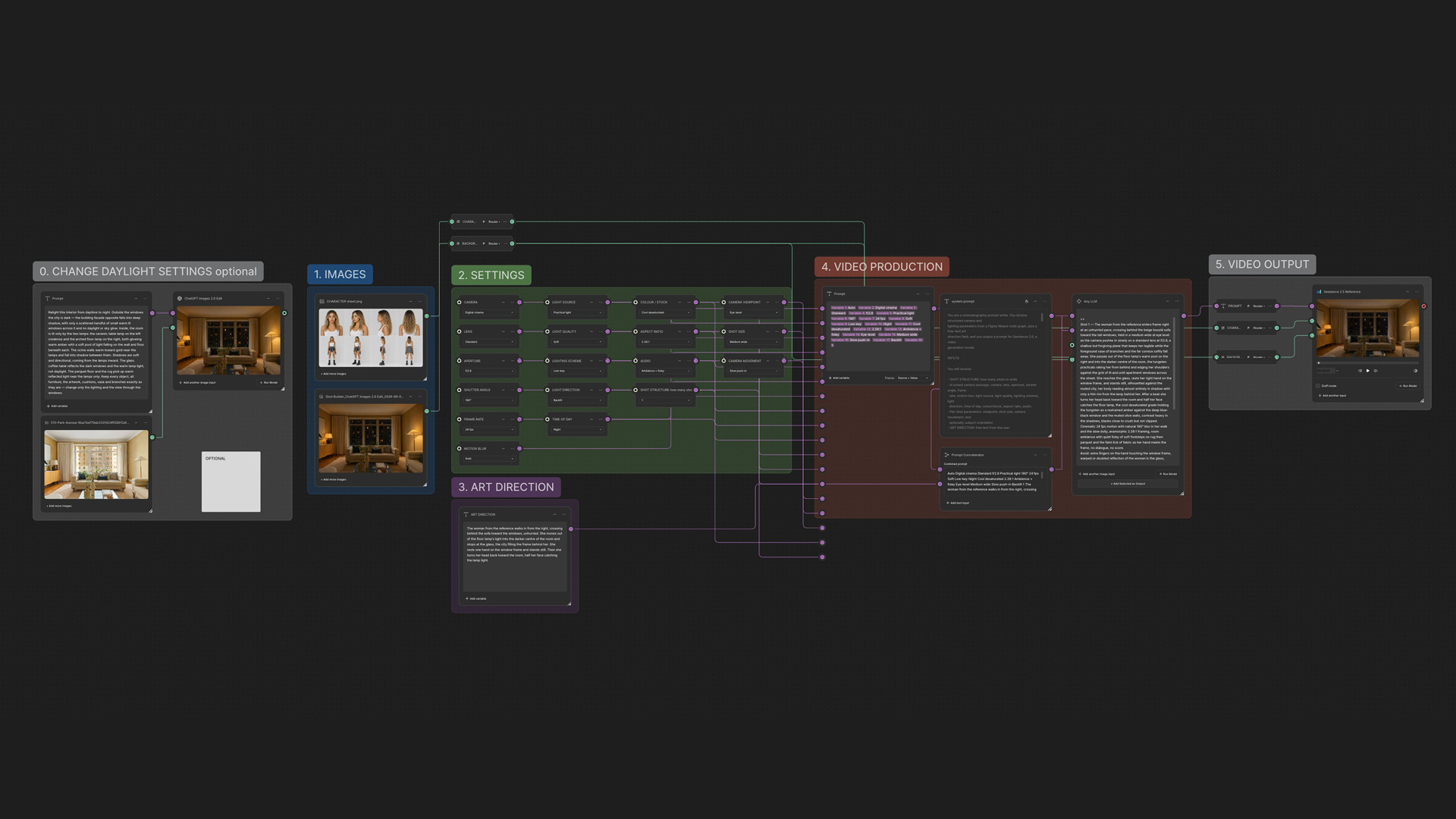 The process allows her to revisit a scene, change specific camera decisions, and generate another shot without rebuilding the entire setup.
Dijana summarizes how the three components work together:
Character sheet locks the identity, shot builder locks the frame, studio setup locks the light.
Each part serves a separate purpose, but together they create a more structured approach to AI-assisted production.
KEY ACTIONS:
Add the approved character sheet and location image.
Configure the video using the 18 dropdown menus.
Describe the scene through written art direction.
Review the structured prompt generated for Seedance.
Generate the video and refine individual settings.
→ Watch Dijana's Full Project Presentation Here
Why It Matters
The value of Dijana's project isn't limited to the photographs and videos it produces. It's in the decisions she can make before generating them.
By giving character identity, lighting, and camera direction separate controls, she can adjust one element without rebuilding everything else.
The dropdown menus also serve as a practical checklist, helping creators remember technical settings and revisit earlier configurations.
AI models won't always follow every instruction perfectly, but Dijana's approach makes it easier to identify what went wrong and try again.
For experienced photographers and filmmakers, this means applying familiar production knowledge to a new set of tools.
Five Lessons in Creative Control from Dijana's Workflow
Projects like this demonstrate that effective AI production depends on more than knowing which model to use.
It depends on knowing which decisions should remain under human control.
Here are five ideas worth taking into your own projects:
Specificity creates control. Define characters deliberately instead of accepting AI-generated defaults.
References support consistency. Lock approved characters and environments before creating new shots.
Technical settings matter. Use precise camera and lighting controls rather than vague descriptions.
Build in quality checks. Catch conflicting instructions before generating.
Experience is an advantage. Apply existing photography and production knowledge to AI workflows.
The broader lesson is that AI becomes more useful when the creator understands the process well enough to structure it.
From Individual Prompts to a Production System
Dijana has connected three familiar production tasks: casting a character, setting up a photographic studio, and directing a video shoot.
Each has its own controls, but the outputs feed into the next stage.
Claude helped her build and test the system, while her years of experience on photographic shoots informed the decisions behind it.
The same interest in connecting creative stages can be seen in Jeff Hipolito's CineMachine project, which explores character development, scene planning, and AI-assisted filmmaking.
Dijana said it best during her final project presentation to us:
Build in Figma Weave. Break it. Fix it. Repeat until the output holds.
The result is a practical example of how creative professionals can turn what they already know into tools they can use repeatedly.
Learn with Lighthouse: Build AI Workflows That Put Creators in Control
At Lighthouse AI Academy, we believe AI should strengthen the creative process, not replace the expertise behind it.
Dijana's project shows how 25 years of graphic design and extensive experience on photo shoots can shape a practical AI production system.
From casting characters to controlling lighting and camera movement, her workflow keeps creative decisions in human hands.
Her system keeps photographers, designers, and directors in control of the final shot, while AI handles more of the production process.
That's why we always say it’s all about:
USING AI TO ENHANCE, NOT REPLACE.
View our courses now and learn to turn your creative expertise into practical AI workflows.
Any questions or comments about the article?
Message us at support@lighthouseacademy.ai and let us know your thoughts.